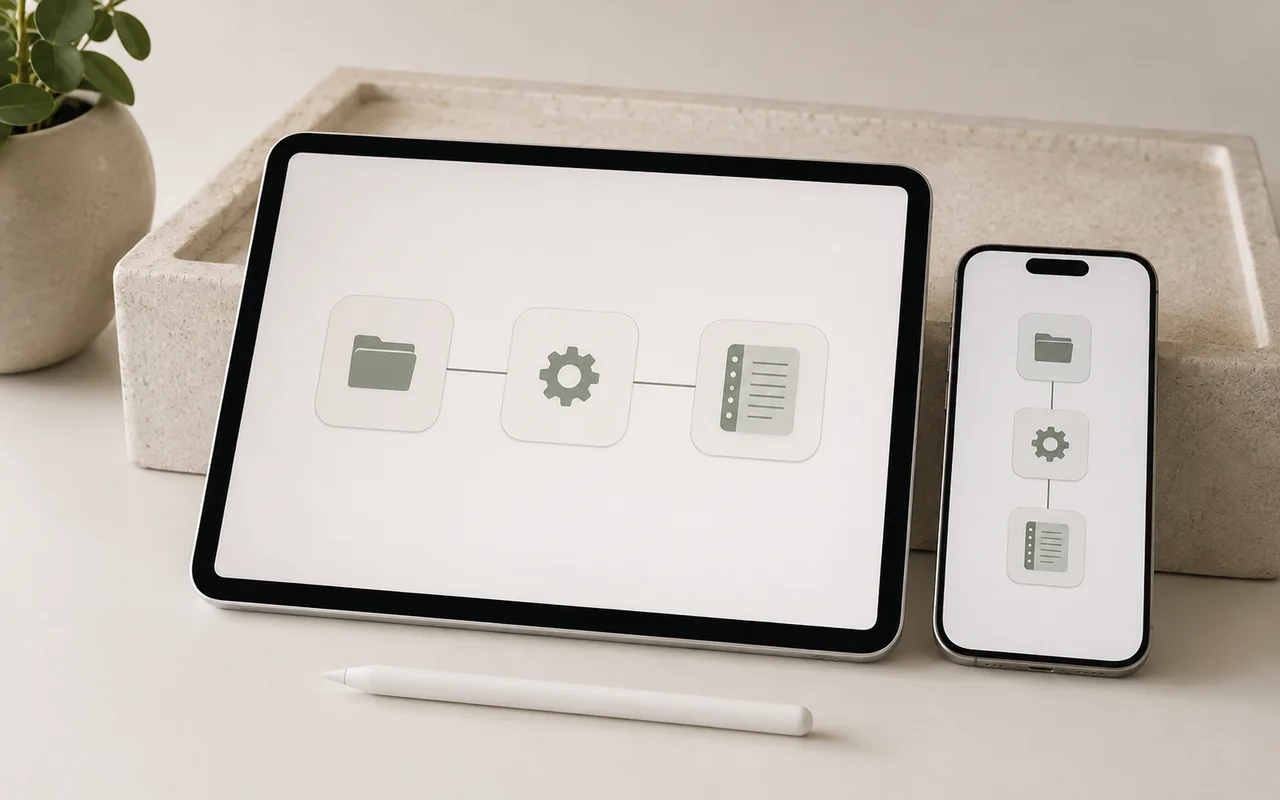
Os Atalhos da Apple podem pedir que um ou mais apps concluam uma tarefa. O atalho próprio do Planner conecta os recursos compatíveis do Planner a essas automações, tornando as ações comuns de planejamento digital mais rápidas e agradáveis.
Step 1
Confirme que seu dispositivo é compatível
Shortcuts é um recurso da Apple, portanto o Atalho do Planner está disponível apenas no iPad, iPhone e Mac.
Step 2
Instalar o atalho do Planejador
Importar o atalho leva apenas alguns passos.
- Abra o link de instalação do Atalho do Planejador no Safari.
- Adicione o atalho ao seu iPhone, iPad ou Mac.
- Siga o prompt de configuração e escolha o aplicativo de planejamento digital ou de anotações que você normalmente usa.
- Mantenha o nome e as ações do atalho inalterados e use-o nos recursos compatíveis do Planner.
Antes de terminar
Lista de verificação rápida
Próximo passoAplique uma alteração antes de ler outro tutorial.Explore planejadores