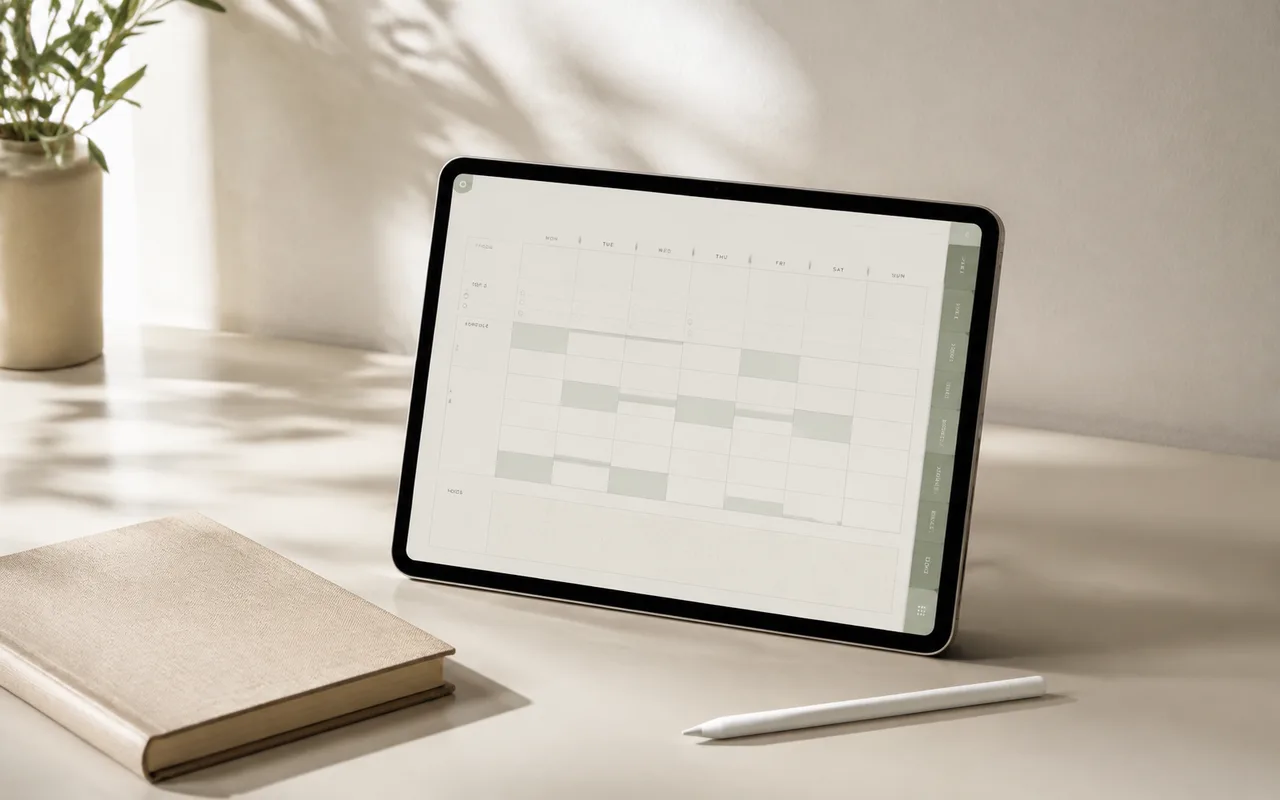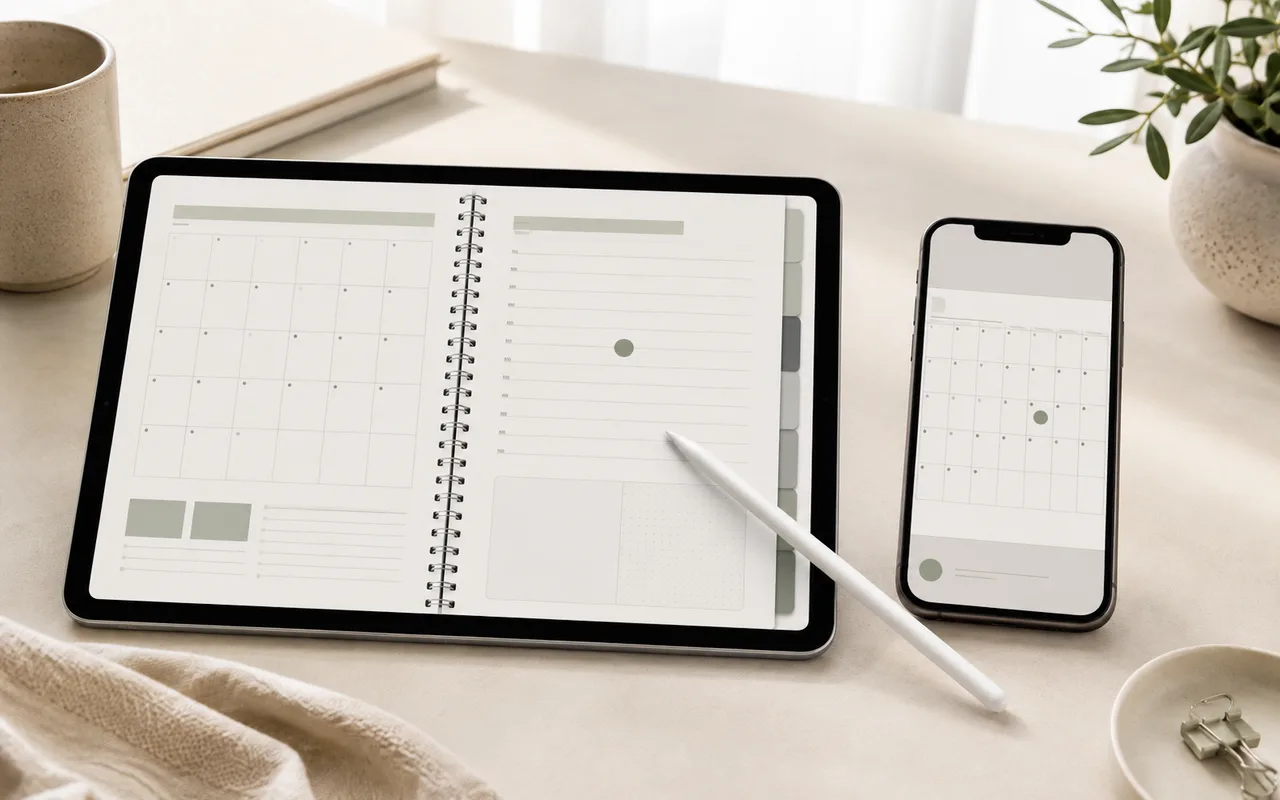
Um livro anual compatível com o Planner pode abrir o aplicativo Calendário da Apple a partir de uma página datada. Se o Calendário usar iCloud, os eventos criados em um iPad também aparecem em um iPhone, então os lembretes permanecem disponíveis mesmo quando o tablet está em outro lugar.
Step 1
Verifique a compatibilidade primeiro
A conexão com o Apple Calendar requer o Atalho do Planner. Atualmente, funciona apenas com os layouts anuais suportados de um dia por página e dois dias por página, em que cada página exibe a data como um número grande.
Step 2
Abra a data correspondente no Calendário
- Instale o Atalho do Planejador e conclua sua configuração inicial.
- Planeje o dia normalmente em uma página compatível de um ou dois dias no seu planejador anual.
- Alterne o aplicativo de anotações para o modo somente leitura, toque no grande número da data e escolha Abrir Link.
- Aguarde o atalho identificar a data e abrir o dia correspondente no Apple Calendar.
- Mova o cronograma do planejador para o Calendário e adicione lembretes ou use qualquer outro recurso do Apple Calendar que precisar.
Antes de terminar
Lista de verificação rápida
Próximo passoAplique uma alteração antes de ler outro tutorial.Explore planejadores